Overview
OakenOCR is designed as an out-of-the-box OCR tool that removes complex model deployment steps and runs fast even on low-end hardware. It works fully offline. All processing is done locally on your machine.
OakenOCR is built with C++. The UI uses Qt 6.10.2, inference uses Microsoft ONNX Runtime 1.23.2, and image processing uses OpenCV 4.12.0. No other components or runtime libraries are required.
Installation
Download the OakenOCR installer from the website: OakenOCR-vx.y.z.exe. Double-click to install, then launch OakenOCR from the desktop shortcut.
- The installer includes ONNX inference models for OpenOCR and PaddleOCR.
- The installer includes Visual C++ Redistributable v14 package. OakenOCR is developed with Visual Studio Community 2022 and requires the Visual C++ Redistributable package at runtime.
OCR Engines
OakenOCR v0.1.0 integrates two widely used OCR engines: OpenOCR and PaddleOCR.
OpenOCR
OpenOCR is an open-source platform built by the OCR team led by Prof. Yugang Jiang and Prof. Zhineng Chen at Fudan University FVL Lab, focusing on common OCR tasks such as text detection and recognition, formula and table recognition, and document parsing and understanding. OakenOCR integrates a practical OCR system based on SVTRv2. On OCR leaderboards, it achieves 4.5% higher accuracy than the PP-OCRv4 baseline with similar inference speed, and supports Chinese and English text detection and recognition.
PaddleOCR
PaddleOCR is a Baidu open-source multilingual OCR toolkit that recognizes text quickly and accurately. In public evaluations, Chinese and English recognition accuracy can exceed 95%, and it handles complex backgrounds and multi-direction text well. OakenOCR integrates the PP-OCRv5_server_det text detection model and the PP-OCRv5_server_rec text recognition model. According to the PaddleOCR website, the detection model accuracy is 83.8%, and the recognition model Recognition Avg Accuracy is 86.38%. No additional models are included (for example, the Text Line Orientation Classification Module).
Performance Notes and Selection Tips
| Engine | Model Version | Languages | Avg. inference time per file | Recommended scenarios | Link |
|---|---|---|---|---|---|
| OpenOCR | 1.0 | Chinese, English | 2 s | Scanned images, screenshots, and other well-aligned images | https://github.com/Topdu/OpenOCR |
| PaddleOCR | 5.0 | Chinese (Simplified/Traditional), English, Japanese | 120 s | Phone photos, warped/uneven pages, and other complex images | https://github.com/PaddlePaddle/PaddleOCR |
Inference time is the author's average result on the development PC and is for reference only. Actual time varies by hardware.
- CPU: Intel® Core™ i5-4200M CPU @ 2.50GHz
- RAM: 16GB
- OS: Microsoft Windows 10 Pro 10.0.19045
How to Use
Menu Bar
| Menu | Command | Description |
|---|---|---|
| File | Select File | Select a single file for OCR analysis |
| Select Folder | Select a folder and run OCR analysis on supported files in the folder | |
| Exit | Exit the application | |
| Help | Online Menu | Online documentation |
| Feedback | Submit bugs and improvement suggestions | |
| About | Show an About dialog with company name, product name, version, and online doc link | |
Toolbar
| Icon | Command | Description |
|---|---|---|
 |
Select File | Run OCR analysis on a single file |
 |
Select Folder | Run OCR analysis on supported files in a selected folder |
 |
Previous/Next | When a folder is selected, switch to the previous or next file for OCR |
 |
Switch Engine | Switch between integrated OCR engines via the combo box |
 |
Open Online Docs | Open the online documentation in the system default browser |
 |
Feedback | Open the feedback dialog to submit issues or suggestions |
Bug Reports and Feedback
Open the feedback dialog by clicking Help → Feedback or the toolbar Feedback button:

| Field | Meaning | Notes |
|---|---|---|
| Subject | Feedback subject | Used as the email subject; briefly describe the issue or request |
| Email address | Where responses will be sent. Make sure this address is valid. | |
| Content | Message | Detailed description; no word limit |
| Select Files | Attachments | Max 1MB per file, up to 6 files. If you have many files, send a ZIP instead |
| Commit | Submit | Send the email |
To help diagnose issues, OakenOCR includes CPU, memory, and GPU information when sending emails. No other data is collected.
OCR Analysis Results
Display
Visual View
After OCR finishes, the app marks the detected line numbers and text positions on the image:
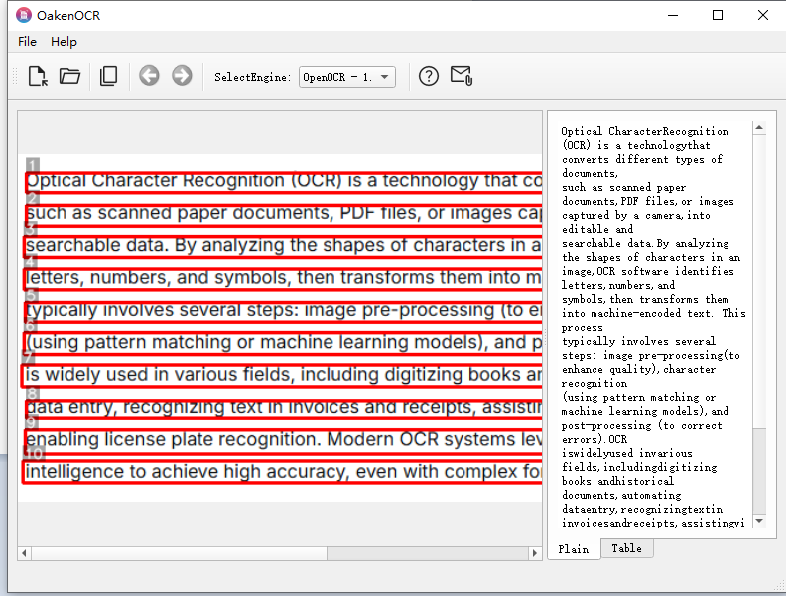
Text View
Text View shows only the recognized text. Right-click to open a context menu for actions such as copy/paste.
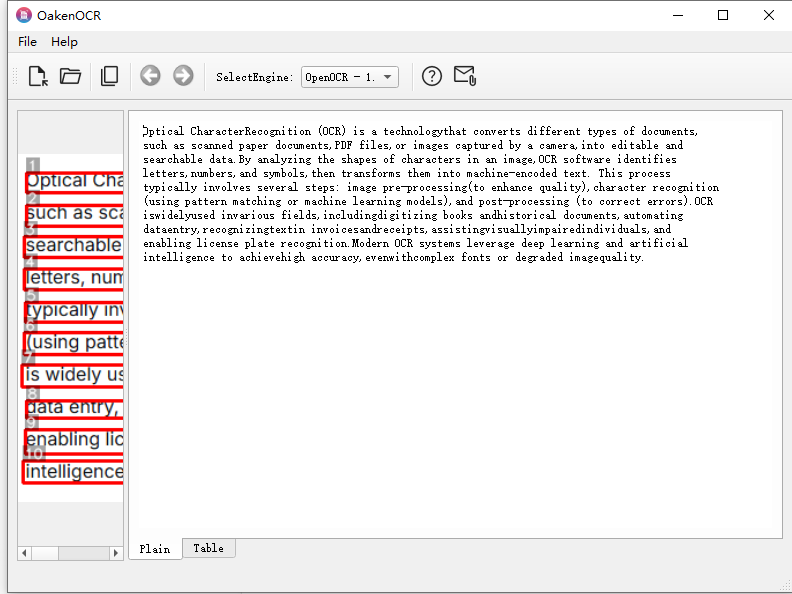
Table View
Table View shows each line's relative position in the original image,
confidence score, and recognized text in a table.
You can select a full column and copy the selected content.

Temporary Files
When OakenOCR starts for the first time, it creates three folders under %localappdata% for logs, temporary files, and images with drawn rectangles.
| Folder | Description |
|---|---|
| %localappdata%\logs | Log files. Only logs from the current day are kept. If an error occurs, please submit the log together with your issue description. |
| %localappdata%\img | Image files with added rectangles. |
| %localappdata%\tmp | OCR analysis result files. |
- %localappdata% usually expands to C:\Users\UserName\AppData\Local on Windows.
- Files in the three folders above can be deleted at any time.